Linux
-
Go to the Element Desktop Download page, and follow the installation instructions for your Linux distribution and version.
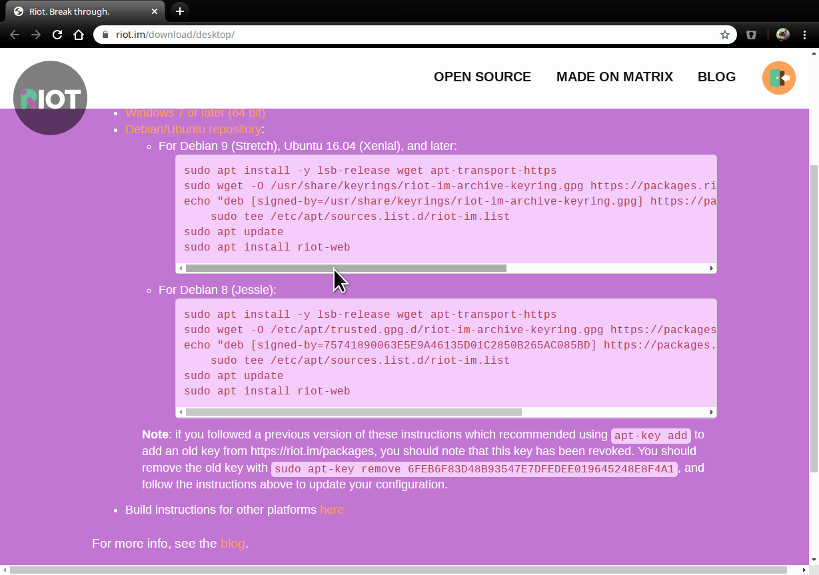
Install Element Desktop -
Launch the installed desktop client.
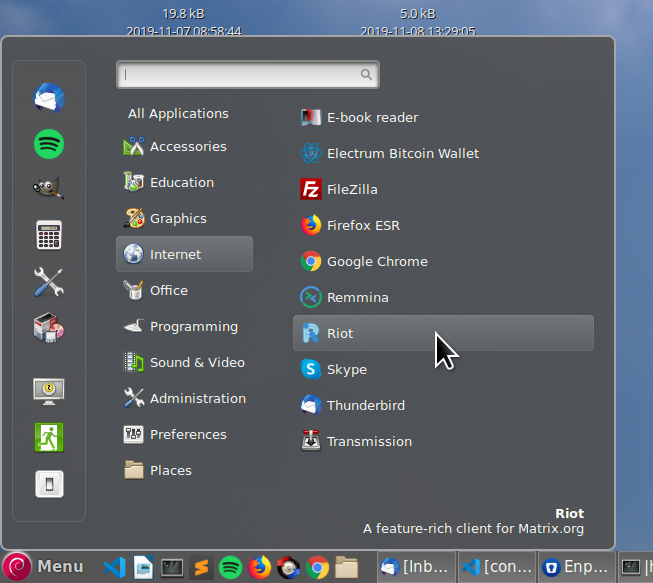
Launch Element Desktop Client -
On the welcome screen, click the Sign In button.
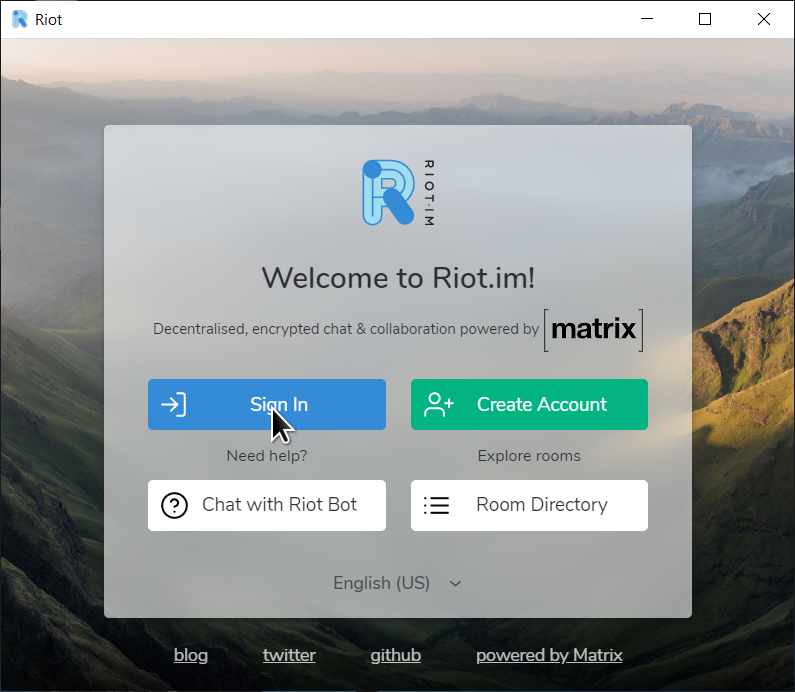
Sign-In to an Existing Server -
Check the Change link to use the Efficient Documents homeserver.
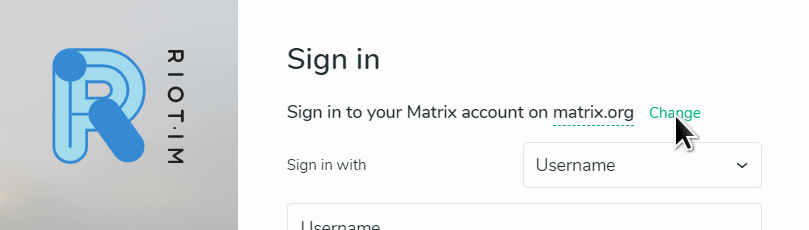
Change the Default Homeserver -
Set Homeserver URL to
https://matrix.efficientdocuments.com/.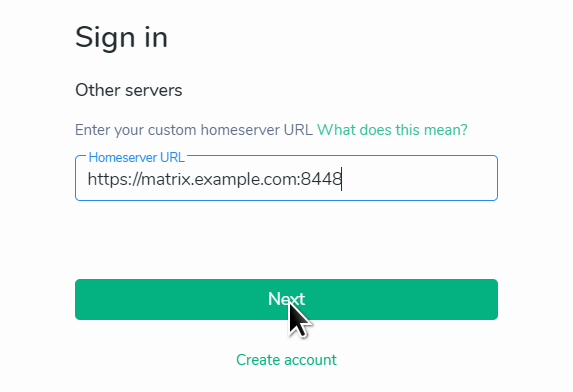
Specify the Homeserver URL -
Click the Sign in with single sign-on button.
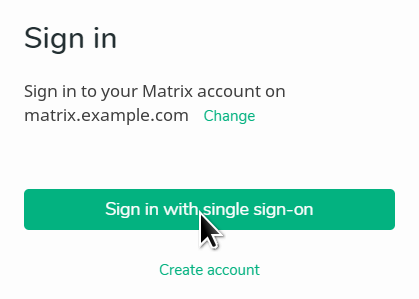
Use SSO to Sign In -
You’ll be prompted for your Efficient Documents account credentials. Enter your Efficient Documents account credentials and click Log In
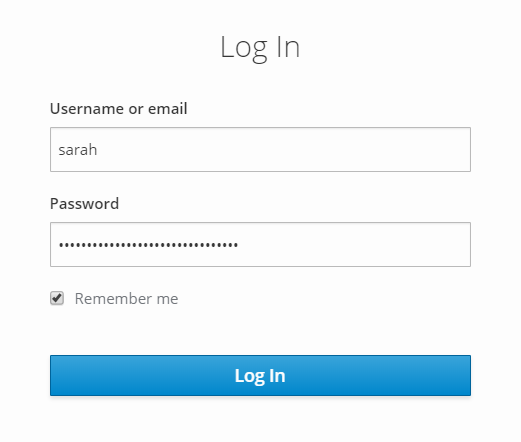
Sign In to SSO If you have Two-Factor Authentication (2FA) enabled for your Efficient Documents account, you may also be prompted for a TOTP.
-
That’s it! The app should be logged in and ready to use.
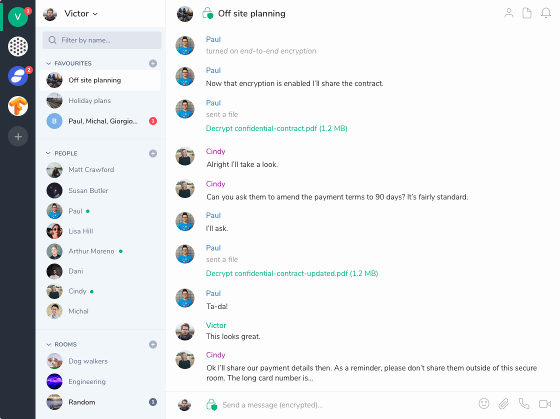
Finished!
Help & Support
For more information about the Element desktop app, see the Element Help & FAQs page